School Management System 98 views

Getting Started with School Management

Learn how to set up and configure your school management system

Published on September 14, 2025 • Updated on December 7, 2025

Welcome to School Management System

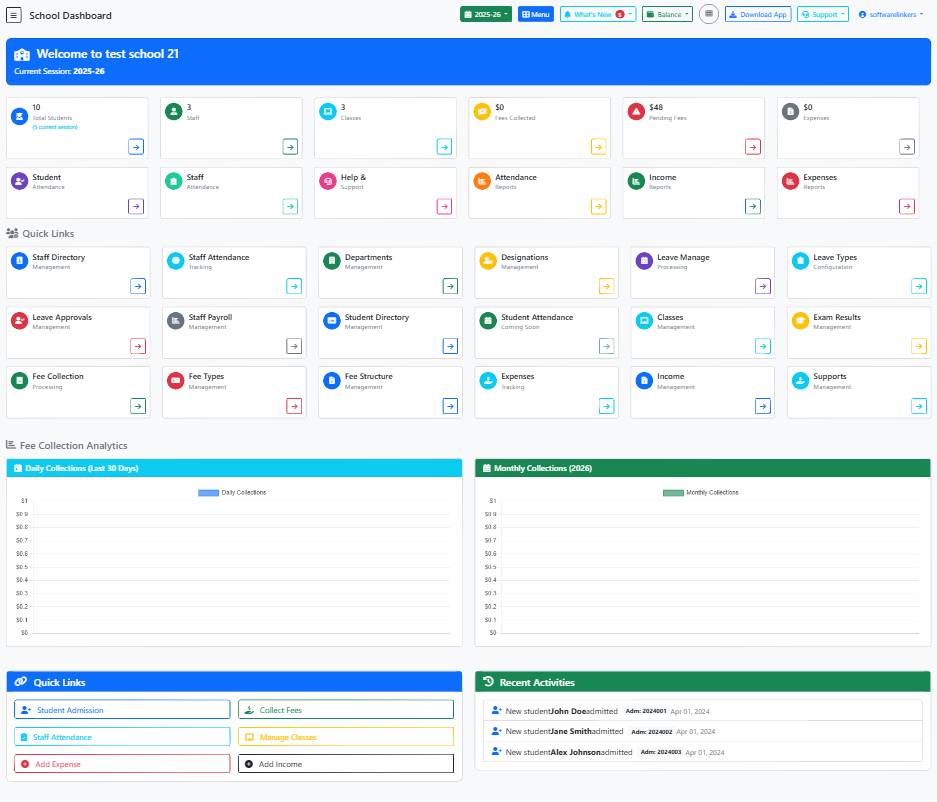
This comprehensive guide will help you get started with your school management system. Follow these steps to set up your school and begin managing students, staff, and academics.

Initial Setup Steps:

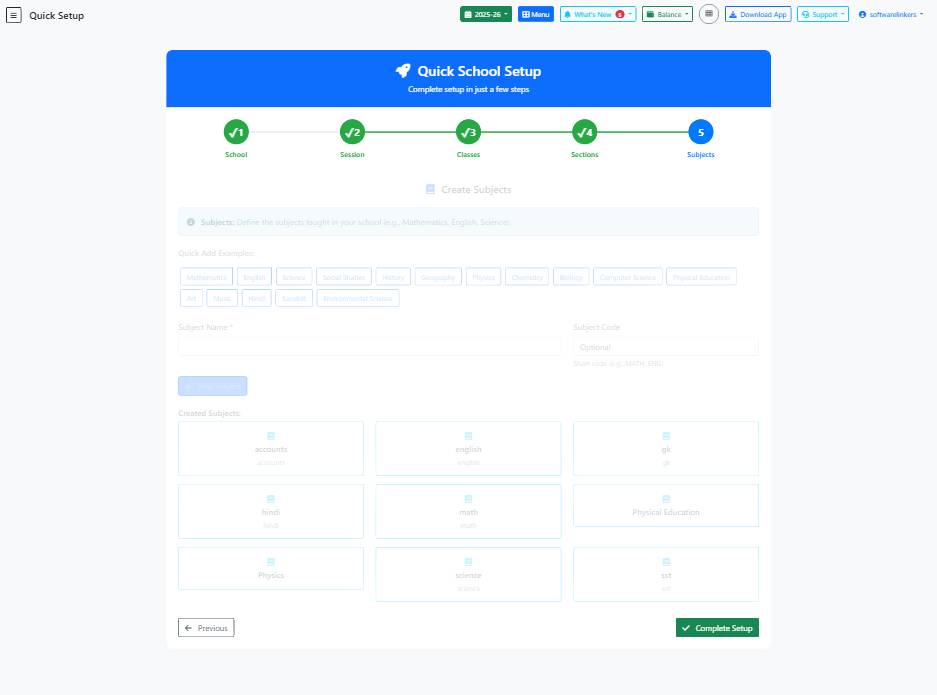
  1. Configure school basic information
  2. Set up academic sessions
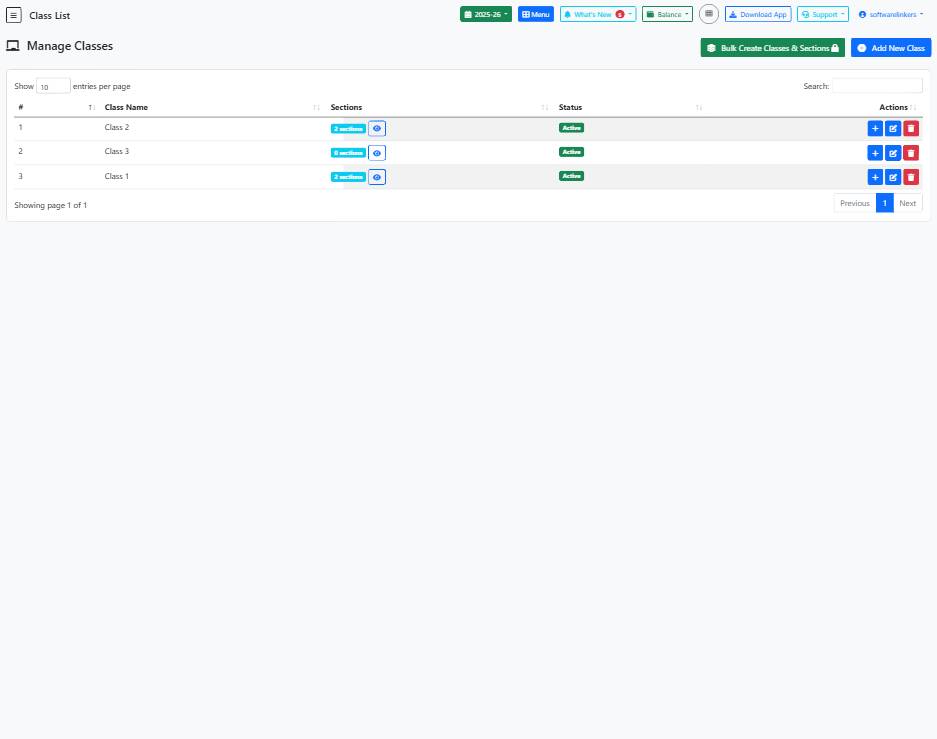
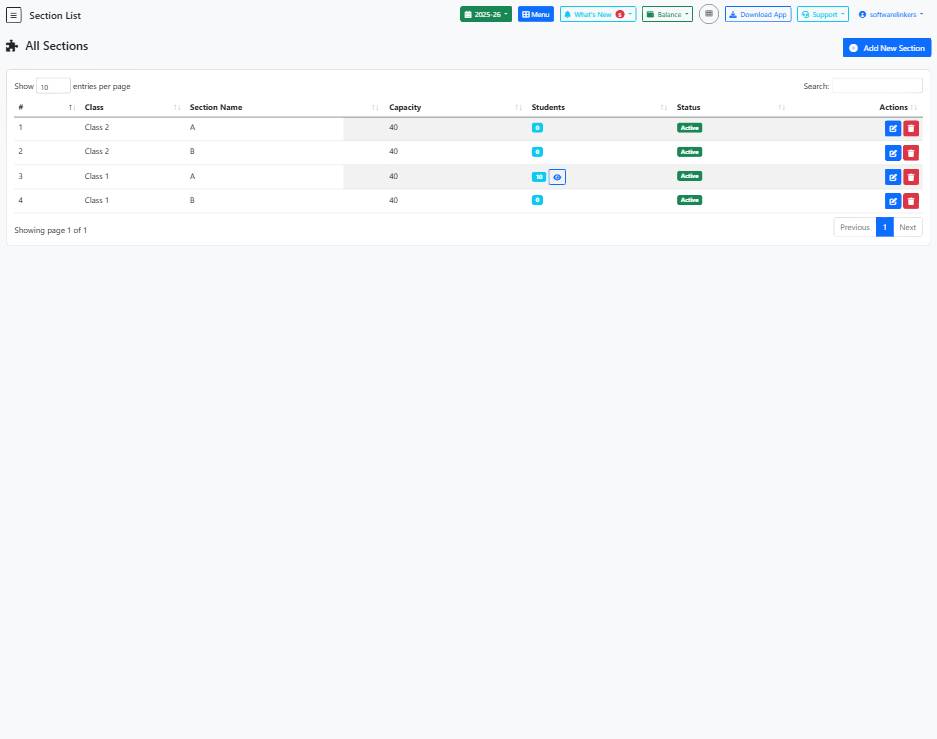
  3. Create classes and sections
  4. Add staff members
  5. Enroll students

Modules & Sub-Sections

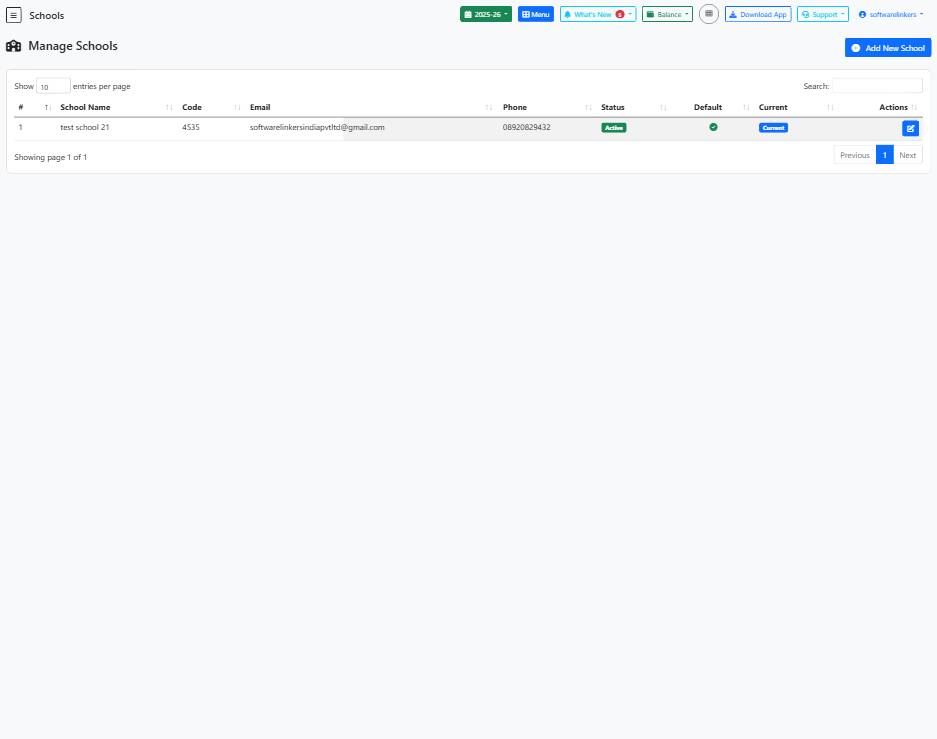
School Information Setup

Configure school details and settings

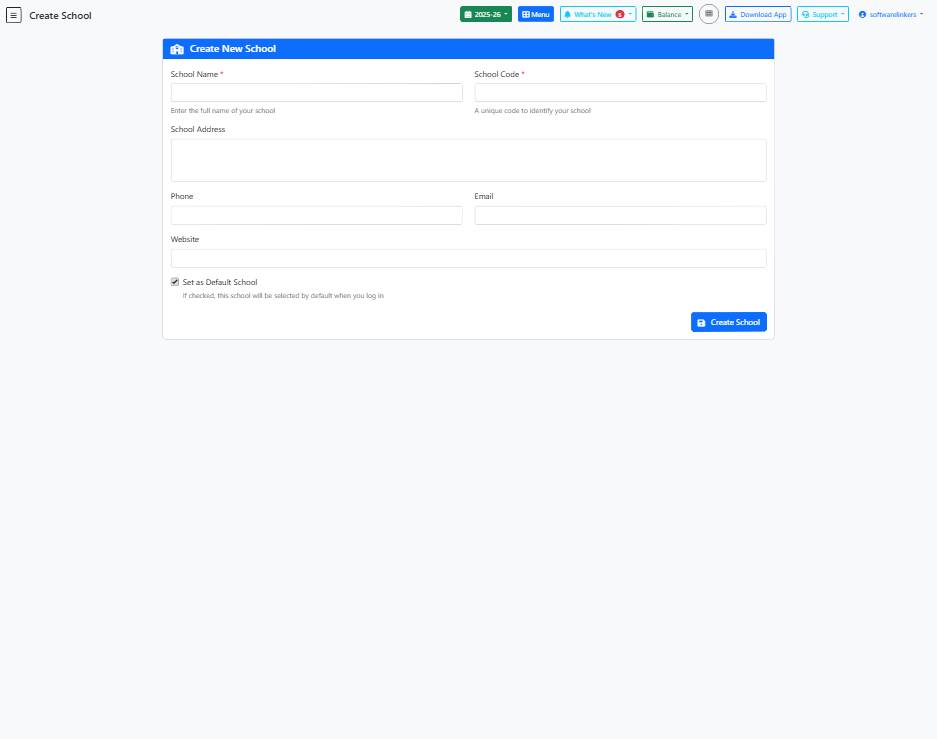
School Information Setup

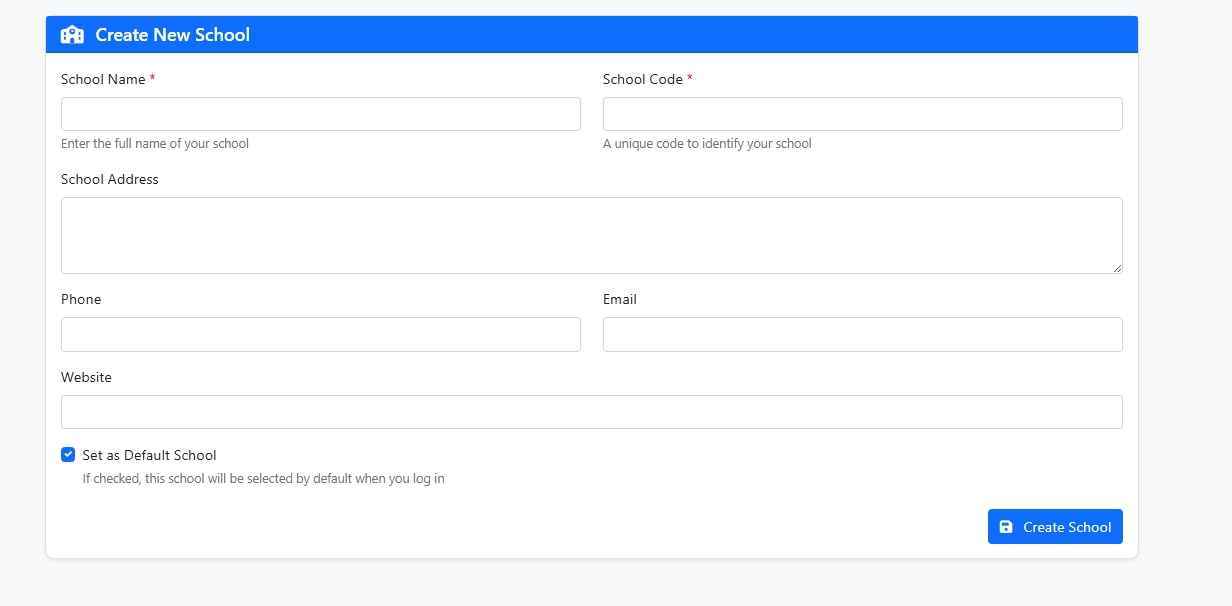
    • 🔹 Step 1: Enter School Details

      1. School Name (Required)

        • Enter the full official name of your school.

        • Example: Green Valley International School

      2. School Code (Required)

        • Provide a short unique identifier for your school.

        • This code must be unique and will help in easy identification.

        • Example: GVIS2025

      3. School Address

        • Enter the complete postal address of your school.

        • Example: 123, Green Road, Delhi, India

      4. Phone

        • Enter the school’s contact number (with country/area code if needed).

        • Example: +91-9876543210

      5. Email

      6. Website


      🔹 Step 2: Set as Default School (Optional)

      • ✅ If you check this box, the system will select this school by default whenever you log in.

      • ❌ If left unchecked, you can still switch schools later from the dashboard.


      🔹 Step 3: Save the School

      • Once all details are filled, click the "Create School" button (bottom-right).

      • If required fields are empty, the system will prompt you to complete them.

      • After successful creation, you will see a confirmation message.

72 views Read More
Academic Sessions Setup

Set up academic years and sessions

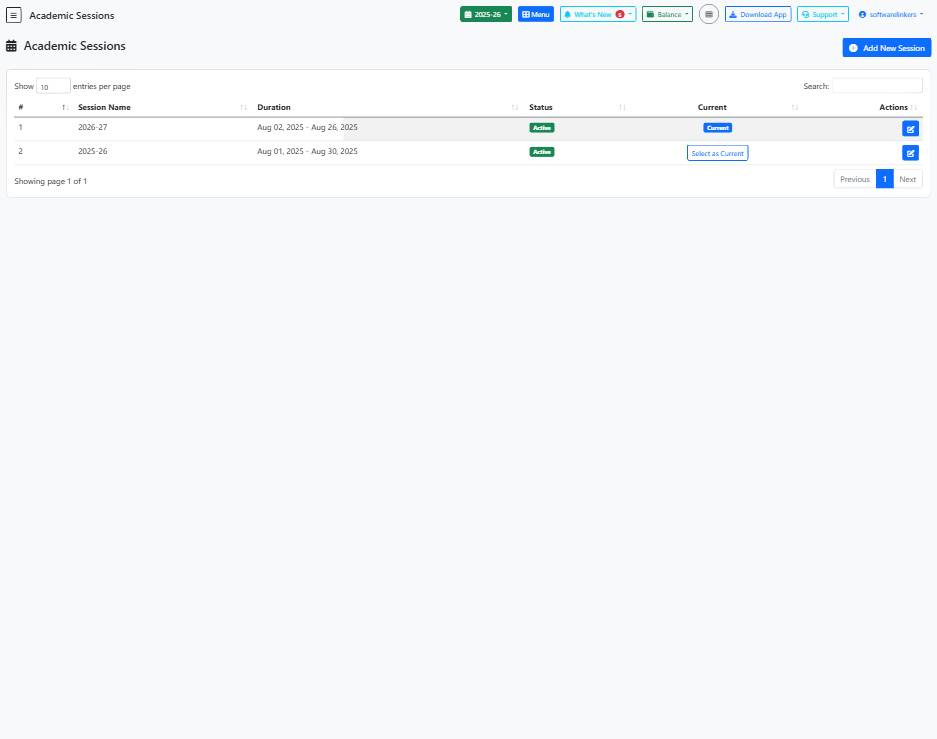
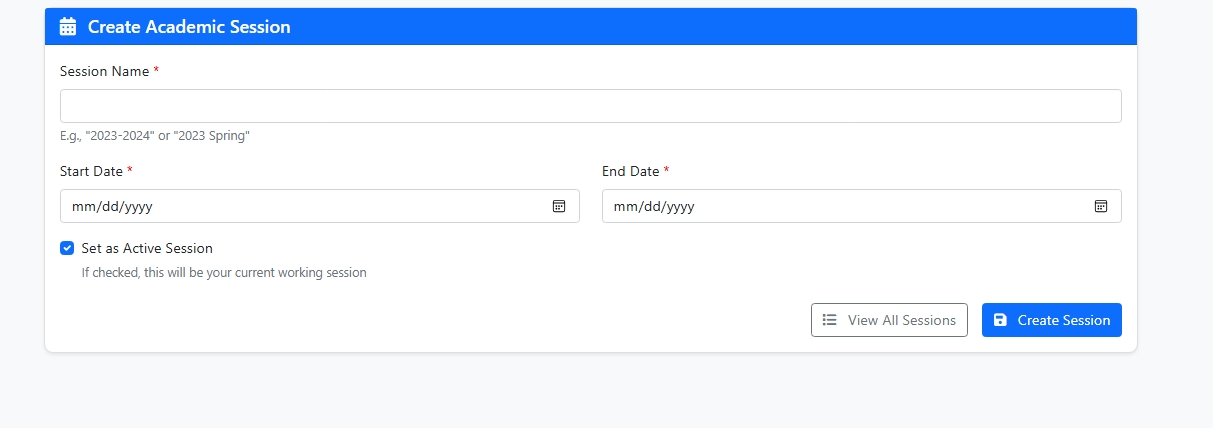
Academic Sessions

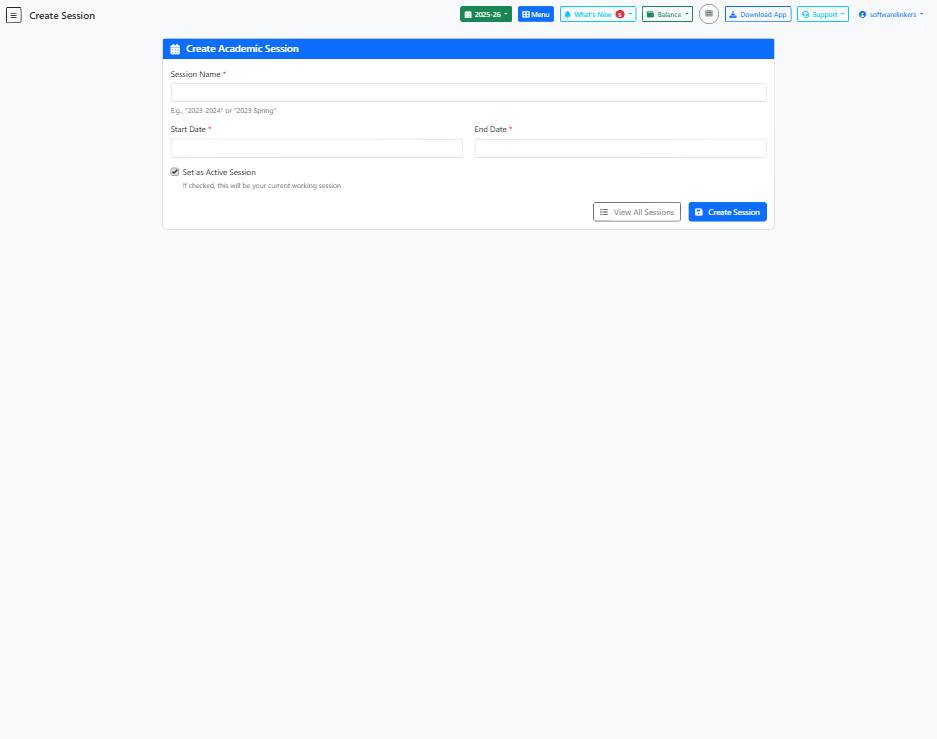
🔹 Step 1: Enter Session Details

  1. Session Name (Required)

    • Provide a name for the academic session.

    • Examples:

      • 2023–2024

      • 2023 Spring Semester

      • 2024 Term 1

  2. Start Date (Required)

    • Select the date when the academic session begins.

    • Use the date picker for accurate entry.

    • Example: 04/01/2023

  3. End Date (Required)

    • Select the date when the academic session ends.

    • Example: 03/31/2024

⚠️ Note: The End Date must be later than the Start Date.


🔹 Step 2: Set as Active Session (Optional)

  • ✅ If checked, this session will become the current working session in the system.

  • ❌ If unchecked, the system will not switch to this session immediately. You can activate it later from the session list.


🔹 Step 3: Save the Session

  • After filling in the details, click "Create Session".

  • If mandatory fields are missing, the system will show an error message.

  • To check or manage existing sessions, click "View All Sessions".

72 views Read More
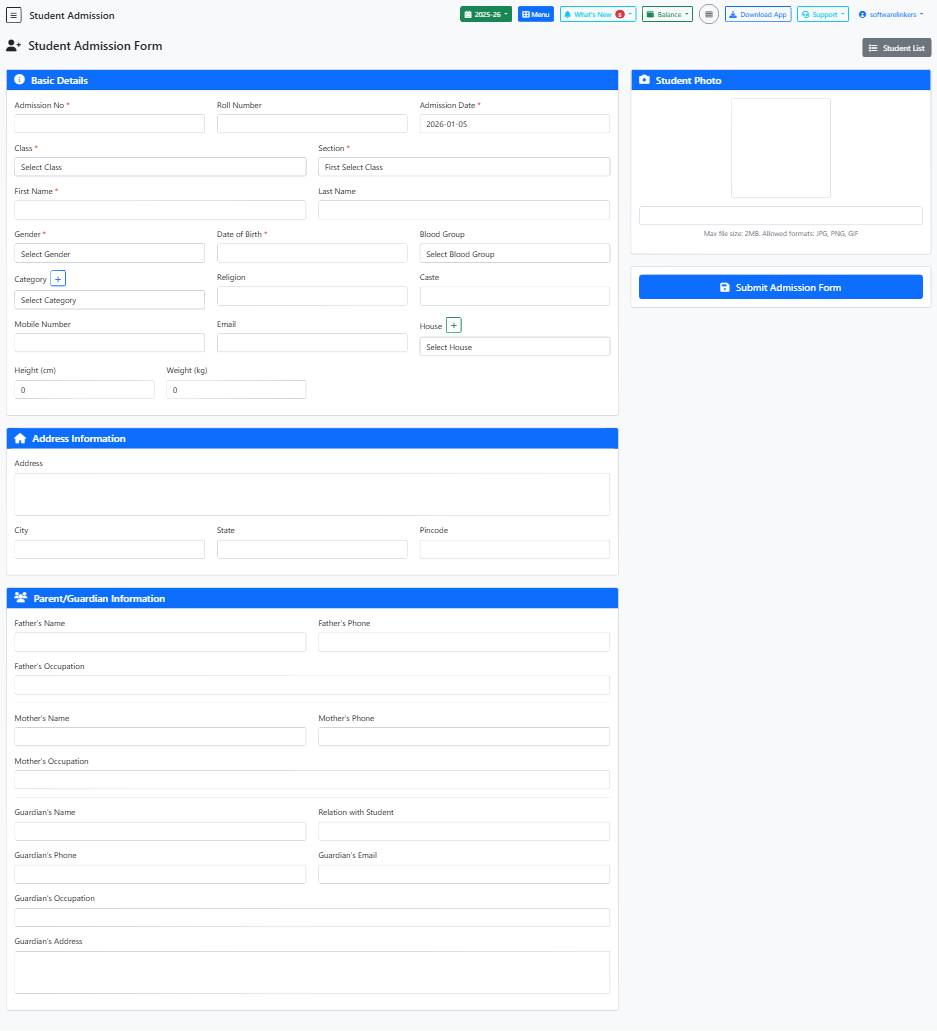
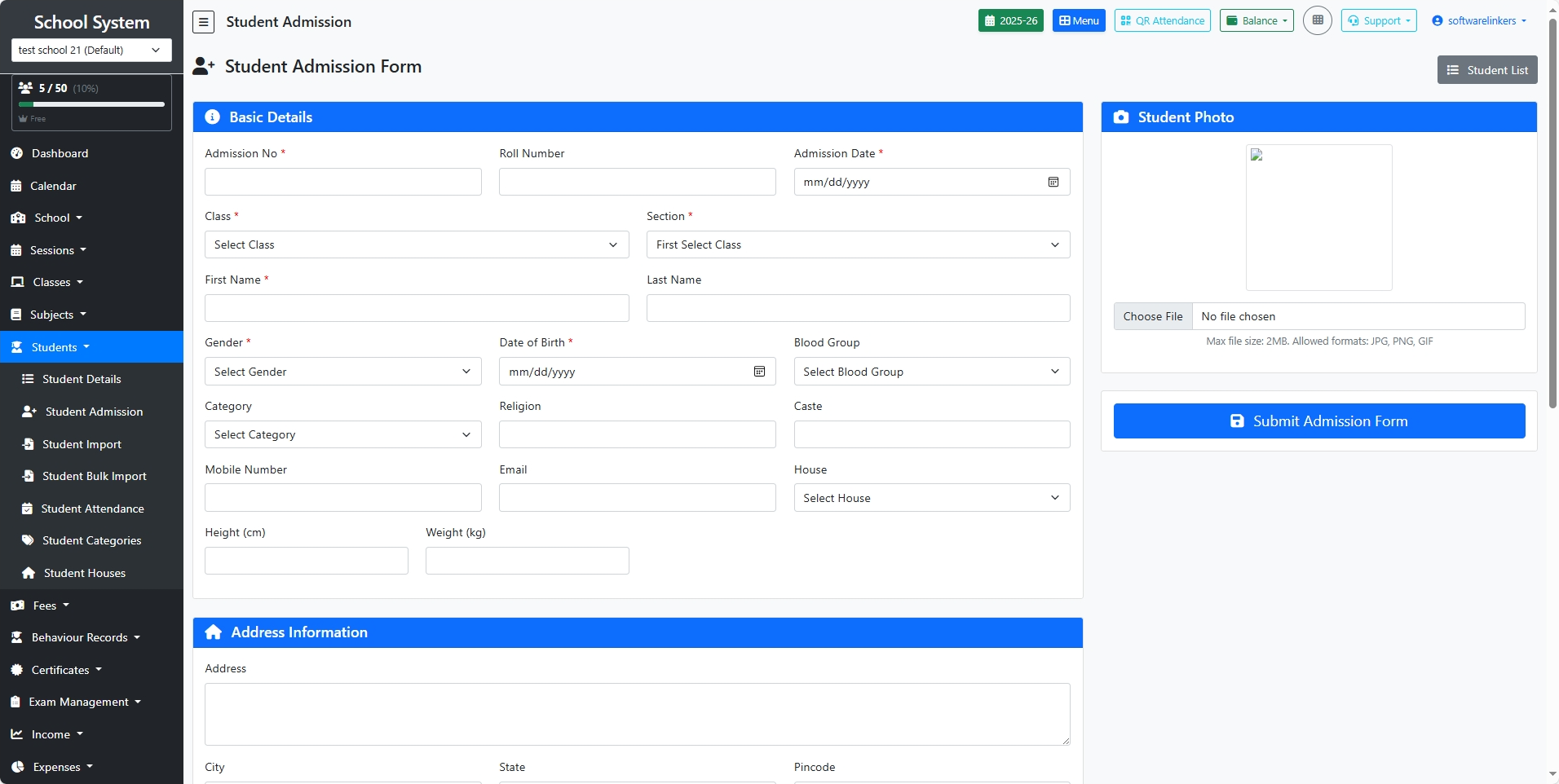
Student Admission Form

This form allows you to add new students to the school management system. Please fill in all required details accurately.

🔹 Section 1: Basic Details

  1. Admission No (Required)

    • A unique admission number for the student.

  2. Roll Number

    • The student’s roll number (optional at admission stage, can be assigned later).

  3. Admission Date (Required)

    • Select the date of admission.

  4. Class & Section (Required)

    • Choose the class and section where the student will be admitted.

  5. Student Name (Required)

    • Enter First Name and Last Name.

  6. Gender

    • Select the student’s gender.

  7. Date of Birth

    • Provide the student’s date of birth.

  8. Blood Group

    • Choose from available options (e.g., A+, B-, O+).

  9. Category / Caste / Religion

    • Enter student’s category (e.g., General, SC, ST, OBC), caste, and religion if applicable.

  10. House

    • Assign a school house (if applicable, e.g., Red, Blue).

  11. Parent Contact Email

    • Enter the student’s or parent’s email address.

  12. Height & Weight

    • Provide physical details if required.


🔹 Section 2: Address Information

  • Address – Full residential address of the student.

  • City, State, Pincode – Enter correct location details for records and communication.


🔹 Section 3: Parent/Guardian Information

  1. Father’s Name, Phone, Occupation

  2. Mother’s Name, Phone, Occupation

  3. Guardian’s Name, Relation, Phone, Email, Occupation, Address

👉 Guardian details are especially important if the student lives with someone other than parents.


🔹 Section 4: Student Photo

  • Upload the student’s recent passport-size photo.

  • Allowed formats: JPG, PNG, GIF

  • Maximum file size: 2 MB


🔹 Final Step: Submit Form

  • Once all details are filled, click Submit Admission Form (bottom-right).

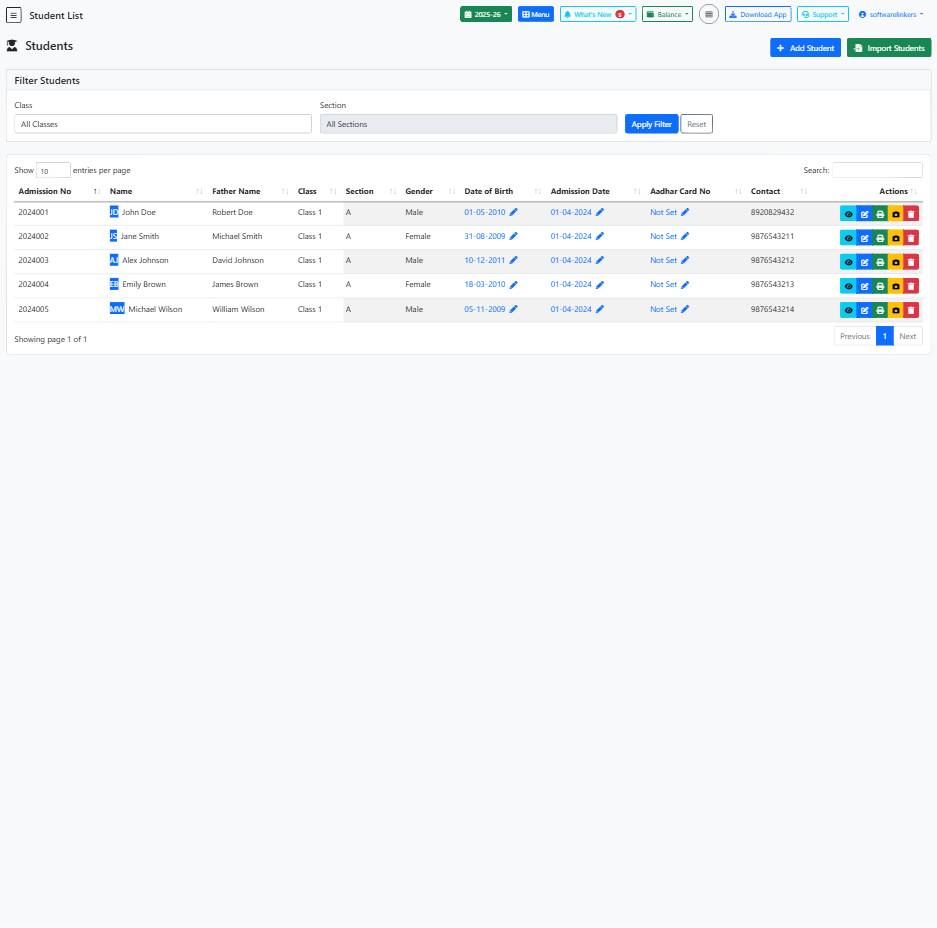
  • The student will now be added to the system and appear in the Student List.

91 views Read More
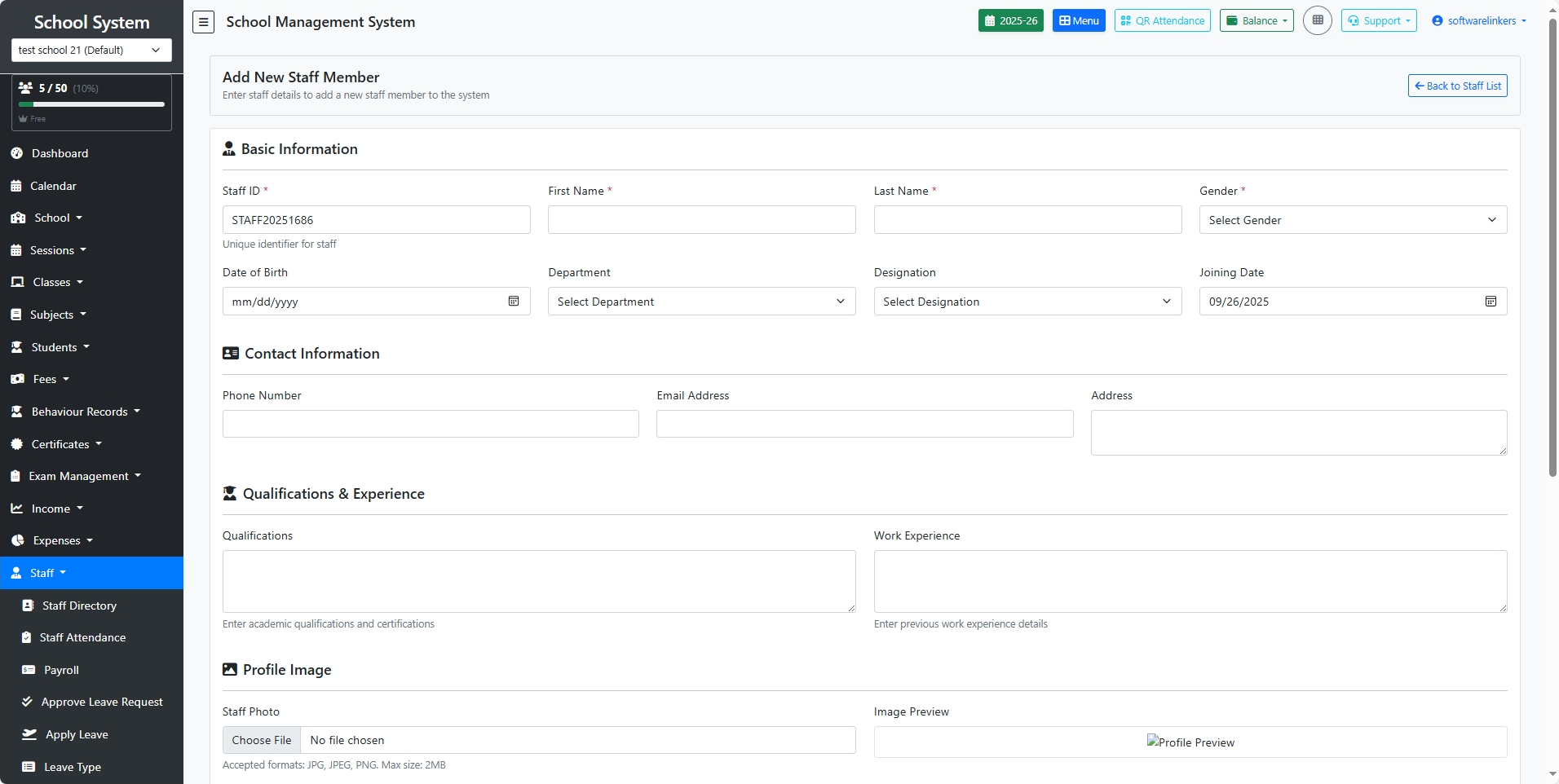
Add New Staff Member

This form is used to register teachers, administrators, and other staff members into the system. Please fill in all required fields before submitting.

🔹 Section 1: Basic Information

  1. Staff ID (Auto/Manual)

    • A unique ID to identify each staff member (can be system-generated or manually entered).

  2. First Name & Last Name (Required)

    • Enter the staff member’s full name.

  3. Gender (Required)

    • Select gender from the dropdown list.

  4. Date of Birth

    • Enter staff member’s date of birth.

  5. Department

    • Choose the department (e.g., Teaching, Accounts, Admin).

  6. Designation

    • Select job title (e.g., Teacher, Principal, Clerk).

  7. Joining Date

    • Record the date the staff member joined your institution.


🔹 Section 2: Contact Information

  1. Phone Number

    • Staff member’s primary contact number.

  2. Email Address

    • Official or personal email ID.

  3. Address

    • Residential address for communication.


🔹 Section 3: Qualifications & Experience

  1. Qualifications

    • Enter academic details, degrees, certifications, or training.

  2. Work Experience

    • Add details of previous employment, if applicable.


🔹 Section 4: Profile Image

  • Upload a clear profile photo of the staff member.

  • Accepted formats: JPG, JPEG, PNG

  • Maximum file size: 2 MB

  • The image will appear in staff records and directories.


🔹 Final Step: Submit

  • Click Add Staff Member (bottom-right) to save the staff record.

  • The new staff will appear in the Staff Directory.

49 views Read More
Was this article helpful?
Share this article
Related Articles
Student Management Guide

Complete guide for managing Student details, Student admission, Student import, Student bulk import,...

118 views
Staff and Teacher Management

Guide for managing school staff, teachers, and their responsibilities...

84 views