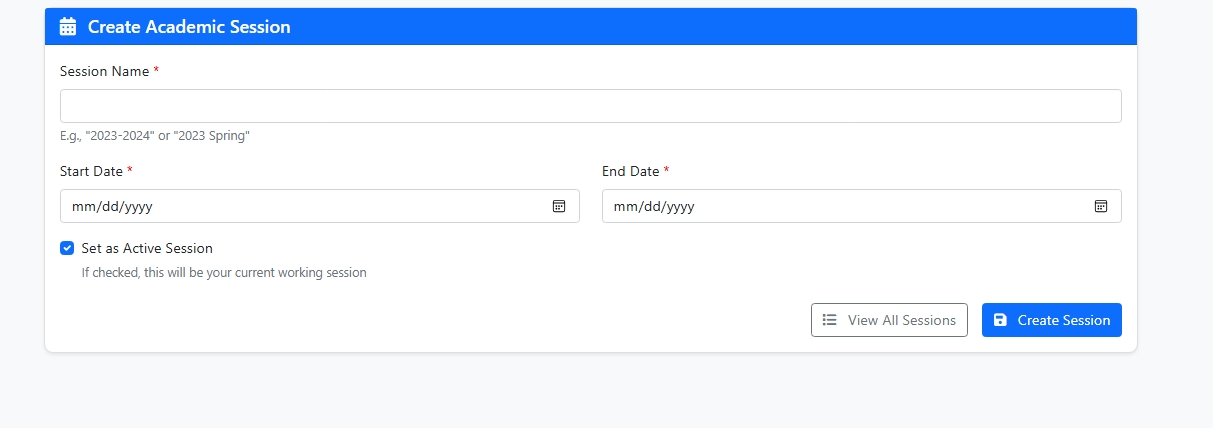
Academic Sessions
🔹 Step 1: Enter Session Details
-
Session Name (Required)
-
Provide a name for the academic session.
-
Examples:
-
2023–2024
-
2023 Spring Semester
-
2024 Term 1
-
-
-
Start Date (Required)
-
Select the date when the academic session begins.
-
Use the date picker for accurate entry.
-
Example: 04/01/2023
-
-
End Date (Required)
-
Select the date when the academic session ends.
-
Example: 03/31/2024
-
⚠️ Note: The End Date must be later than the Start Date.
🔹 Step 2: Set as Active Session (Optional)
-
✅ If checked, this session will become the current working session in the system.
-
❌ If unchecked, the system will not switch to this session immediately. You can activate it later from the session list.
🔹 Step 3: Save the Session
-
After filling in the details, click "Create Session".
-
If mandatory fields are missing, the system will show an error message.
-
To check or manage existing sessions, click "View All Sessions".