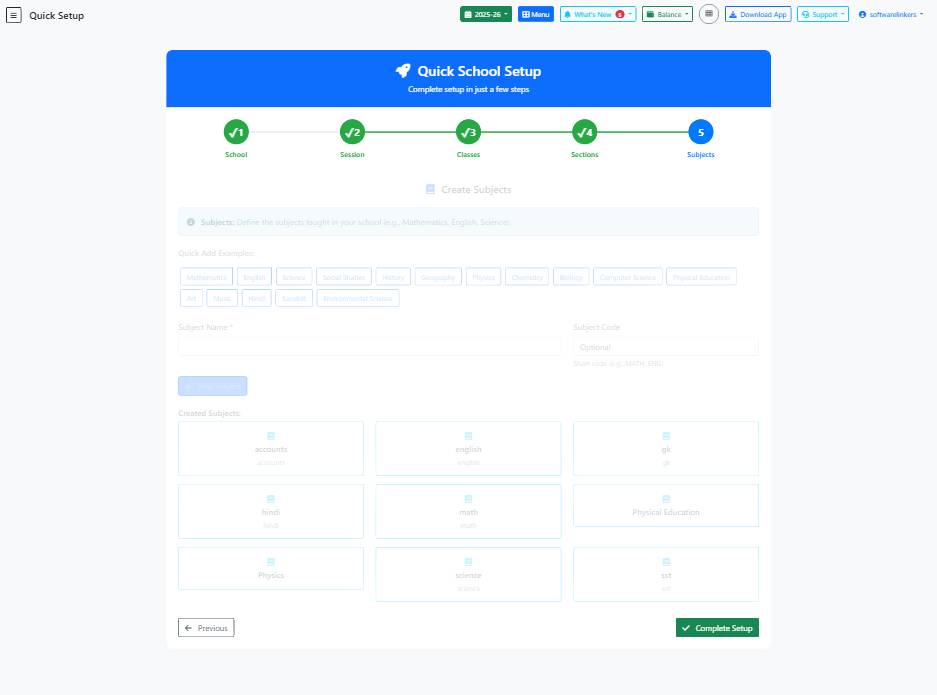
Quick Setup Page Guide
This guide provides step-by-step instructions to quickly set up your school's academic session, classes, sections, and subjects.
📋 Step-by-Step Instructions
- Enter the Session Name in the provided text field.
- Select the Start Date and End Date for the academic session.
- Check the 'Set as Active Session' checkbox if this session is currently active.
- Fill in the Class Name, Numeric Value, and Select a Class from the dropdown.
- Add Section Name, Capacity, Subject Name, Subject Code, and other relevant details.
- Click on the 'Continue to Session Setup' button to proceed with setting up the academic session.
💡 Helpful Tips
- Double-check the dates to ensure they are accurate for the academic session.
- Use descriptive names for classes, sections, and subjects to easily identify them later.
- Save your progress periodically to avoid losing any data.
⚠️ Important Notes
- Make sure to set the correct academic session as active to avoid confusion.
- Ensure that all mandatory fields are filled out before proceeding to the next step.
- Review the information entered before finalizing the setup to prevent errors.