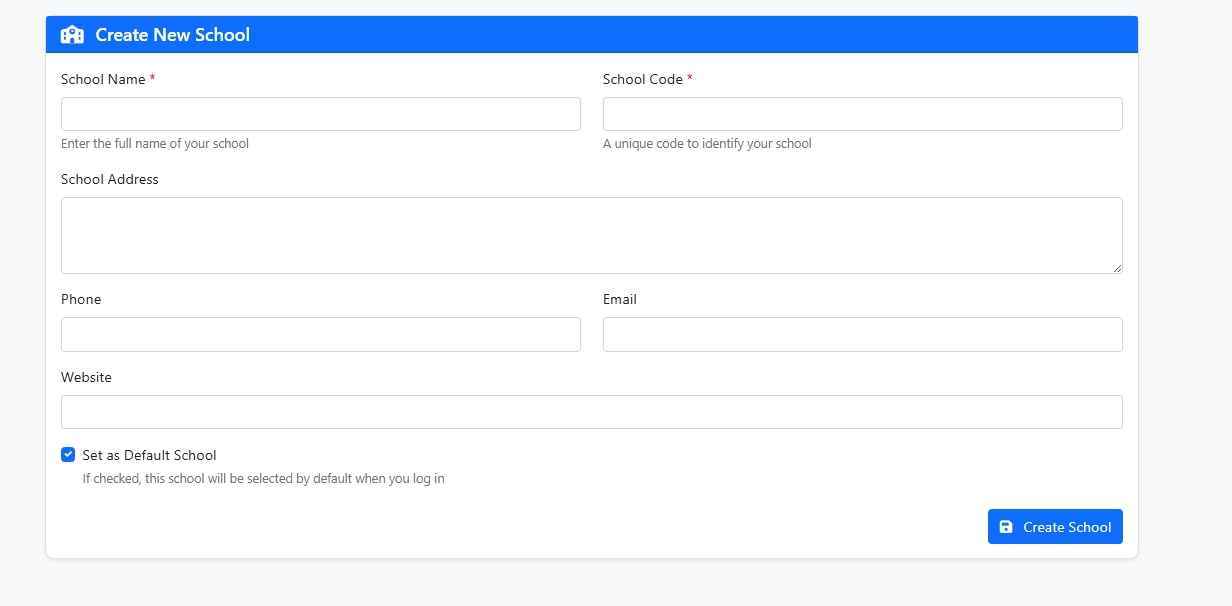
School Information Setup
-
-
🔹 Step 1: Enter School Details
-
School Name (Required)
-
Enter the full official name of your school.
-
Example: Green Valley International School
-
-
School Code (Required)
-
Provide a short unique identifier for your school.
-
This code must be unique and will help in easy identification.
-
Example: GVIS2025
-
-
School Address
-
Enter the complete postal address of your school.
-
Example: 123, Green Road, Delhi, India
-
-
Phone
-
Enter the school’s contact number (with country/area code if needed).
-
Example: +91-9876543210
-
-
Email
-
Provide the official school email address.
-
Example: info@greenvalleyschool.edu
-
-
Website
-
If your school has an official website, enter the URL here.
-
Example: www.greenvalleyschool.edu
-
🔹 Step 2: Set as Default School (Optional)
-
✅ If you check this box, the system will select this school by default whenever you log in.
-
❌ If left unchecked, you can still switch schools later from the dashboard.
🔹 Step 3: Save the School
-
Once all details are filled, click the "Create School" button (bottom-right).
-
If required fields are empty, the system will prompt you to complete them.
-
After successful creation, you will see a confirmation message.
-
-