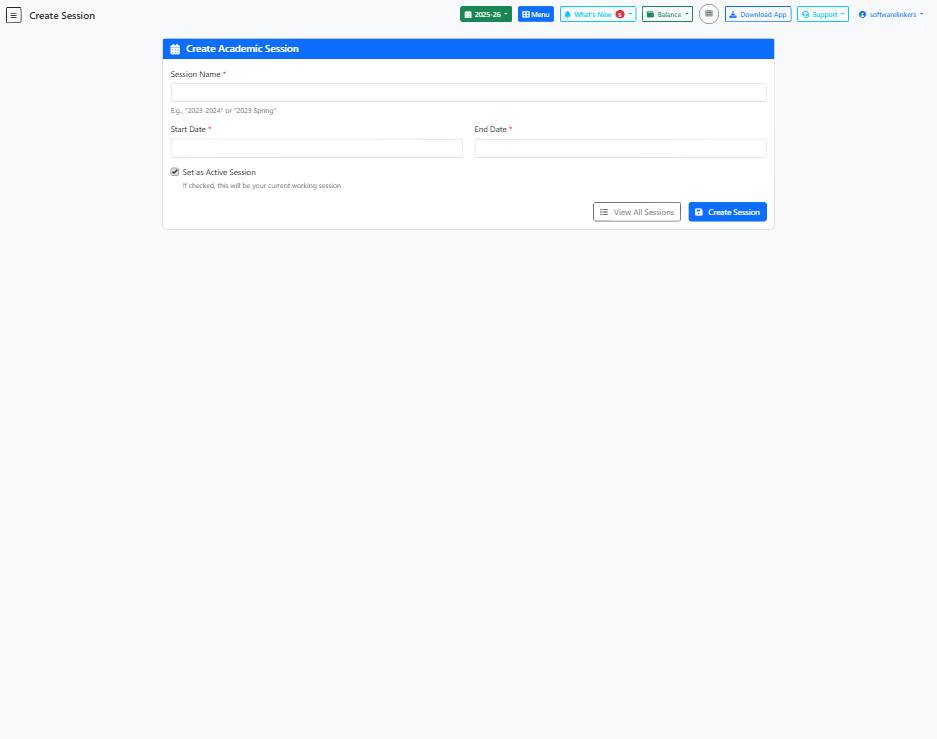
Create Session Page Guide
This guide provides step-by-step instructions on how to create a new academic session in the school management system.
📋 Step-by-Step Instructions
- Enter the Session Name in the provided text field. For example, '2023-2024' or '2023 Spring'.
- Select the Start Date for the session using the date picker.
- Select the End Date for the session using the date picker.
- Check the 'Set as Active Session' checkbox if this session will be your current working session.
- Click on the 'Create Session' button to save the new academic session.
💡 Helpful Tips
- Ensure the Session Name is descriptive and easily identifiable for administrative purposes.
- Choose appropriate Start and End Dates to accurately define the academic session period.
- Regularly review and update active sessions to maintain accurate school records.
⚠️ Important Notes
- Be cautious when setting a session as active, as it will impact the current working environment.
- Double-check all dates and details before creating the session to avoid inaccuracies.
- Avoid creating duplicate sessions with conflicting date ranges to prevent data inconsistencies.