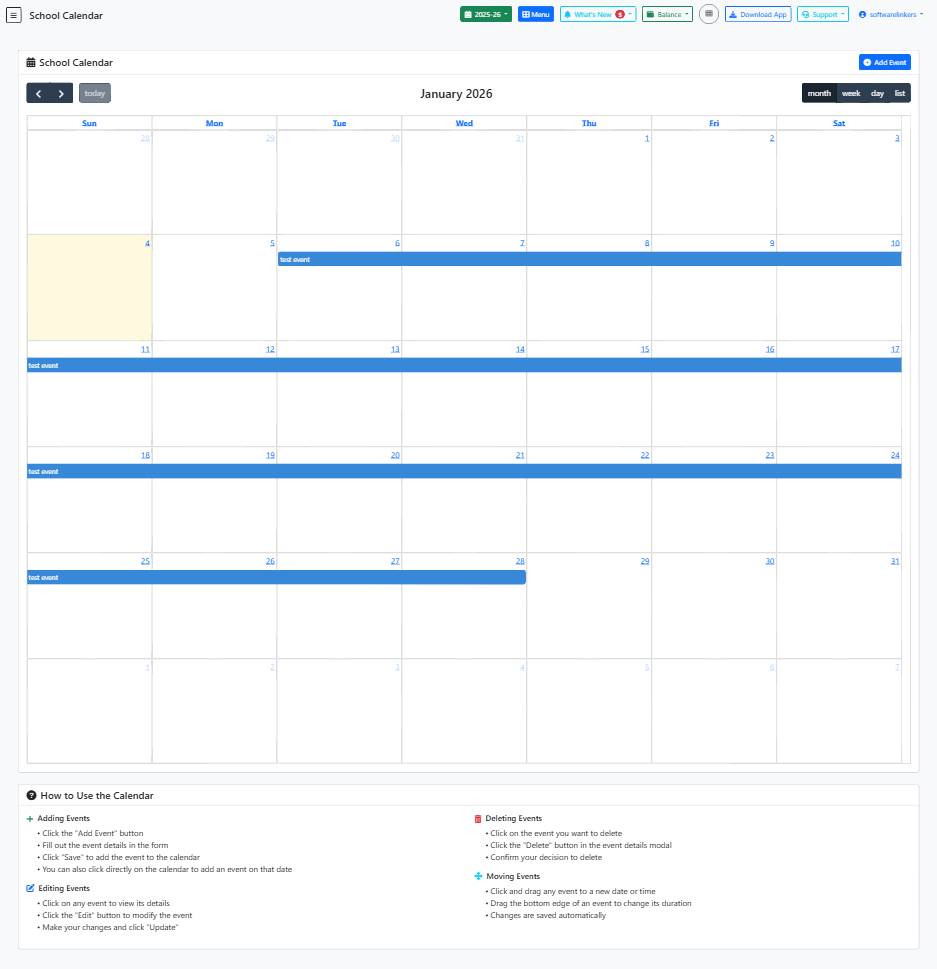
School Calendar Guide
Learn how to effectively manage events and schedules on the School Calendar page.
📋 Step-by-Step Instructions
- Click on 'Add Event' to create a new event.
- Fill in the required details like Event Title, Start Date/Time, End Date/Time, and Event Type.
- Click 'Save Event' to add the event to the calendar or click directly on the calendar to add an event on a specific date.
💡 Helpful Tips
- You can edit an event by clicking on it and then selecting 'Edit'.
- To delete an event, click on the event, choose 'Delete', and confirm your decision.
- Drag and drop events to reschedule them or adjust the event duration by dragging the bottom edge.
⚠️ Important Notes
- Make sure to fill in the required fields marked with '*'.
- Double-check event details before saving to avoid errors.
- Changes to events are saved automatically, so be cautious when making modifications.