School Management System 119 views

Student Management Guide

Complete guide for managing Student details, Student admission, Student import, Student bulk import, Student attendance, Student qr code attendance, Student categories, Student house

Published on September 14, 2025 • Updated on December 7, 2025

Student Management

Manage all aspects of student information including admissions, academic records, attendance, and more.

Key Features:

  • Student details
  • Student admission
  • Student import
  • Student bulk import
  • Student attendance
  • Student qr code attendance
  • Student categories
  • Student house

Modules & Sub-Sections

Student List
Student List

Complete guide for student list

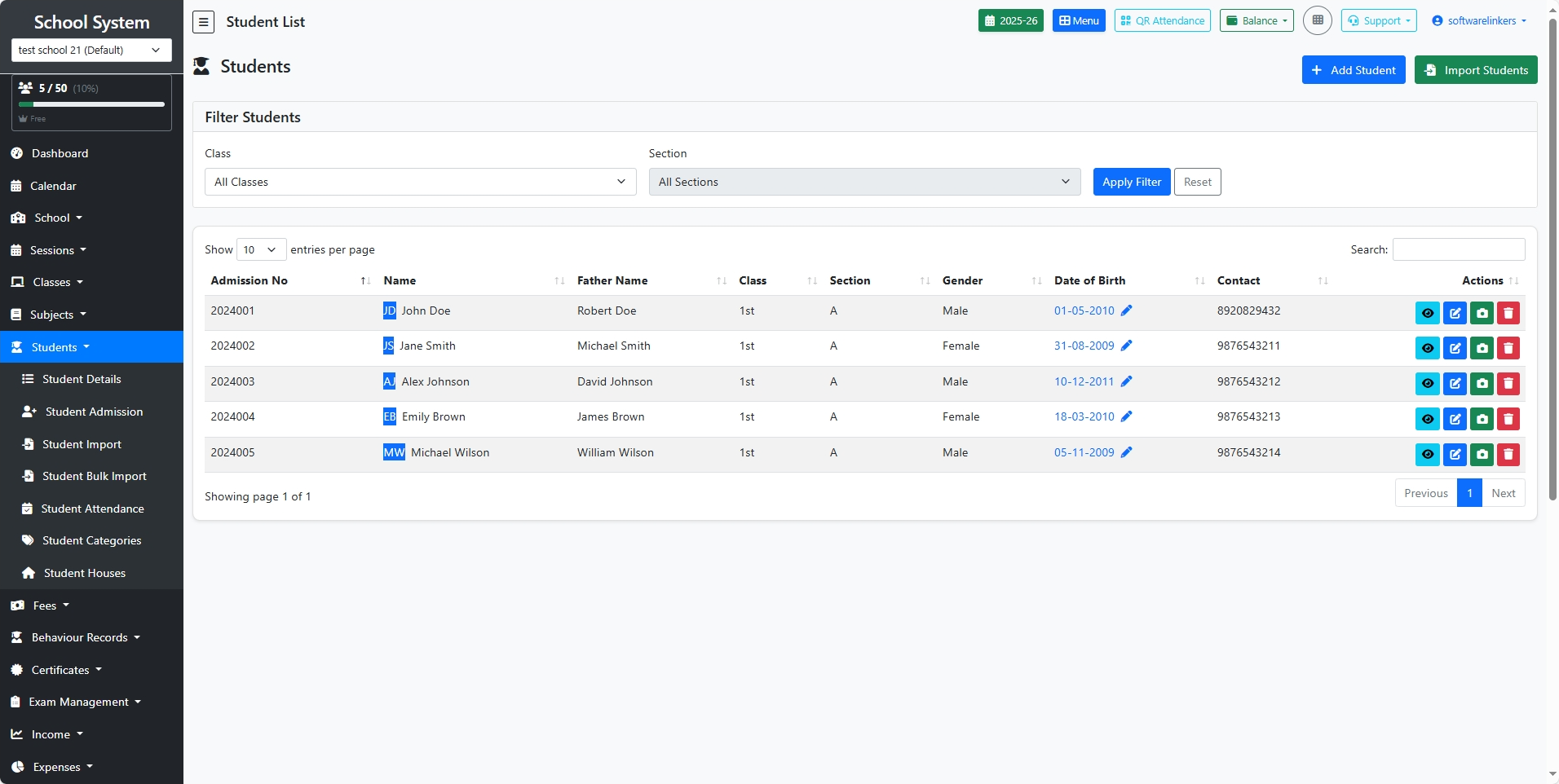
🔹 Student List Overview

Each row in the student list shows:

  • Admission No. – Unique student admission number.

  • Name – Full name of the student.

  • Father’s Name – Parent/guardian name.

  • Class & Section – Current enrolled class and section.

  • Gender – Male/Female.

  • Date of Birth – Student’s birth date.

  • Contact – Student/guardian contact number.

  • Actions – Quick management buttons (View, Edit, Delete).


🔹 Filtering & Search

  1. Filter by Class & Section

    • Use the dropdown menus to show students from a specific class or section.

  2. Apply Filter / Reset

    • Apply selected filters or reset to show all students.

  3. Search Box

    • Type a name, admission number, or other detail to quickly find a student.


🔹 Actions Menu

Each student row has action buttons:

  • 🔍 View – See full student profile.

  • ✏️ Edit – Update student details.

  • 🗑️ Delete – Remove student record (use with caution).

  • 📄 Other Icons – Depending on configuration, may include attendance, reports, or certificates.


🔹 Other Options

  • Add Student – Opens the Student Admission Form to add a new student.

  • Import Students – Allows bulk import of students via CSV/Excel file.

57 views Read More
Student Admission
Student Admission

Manage Student Admission

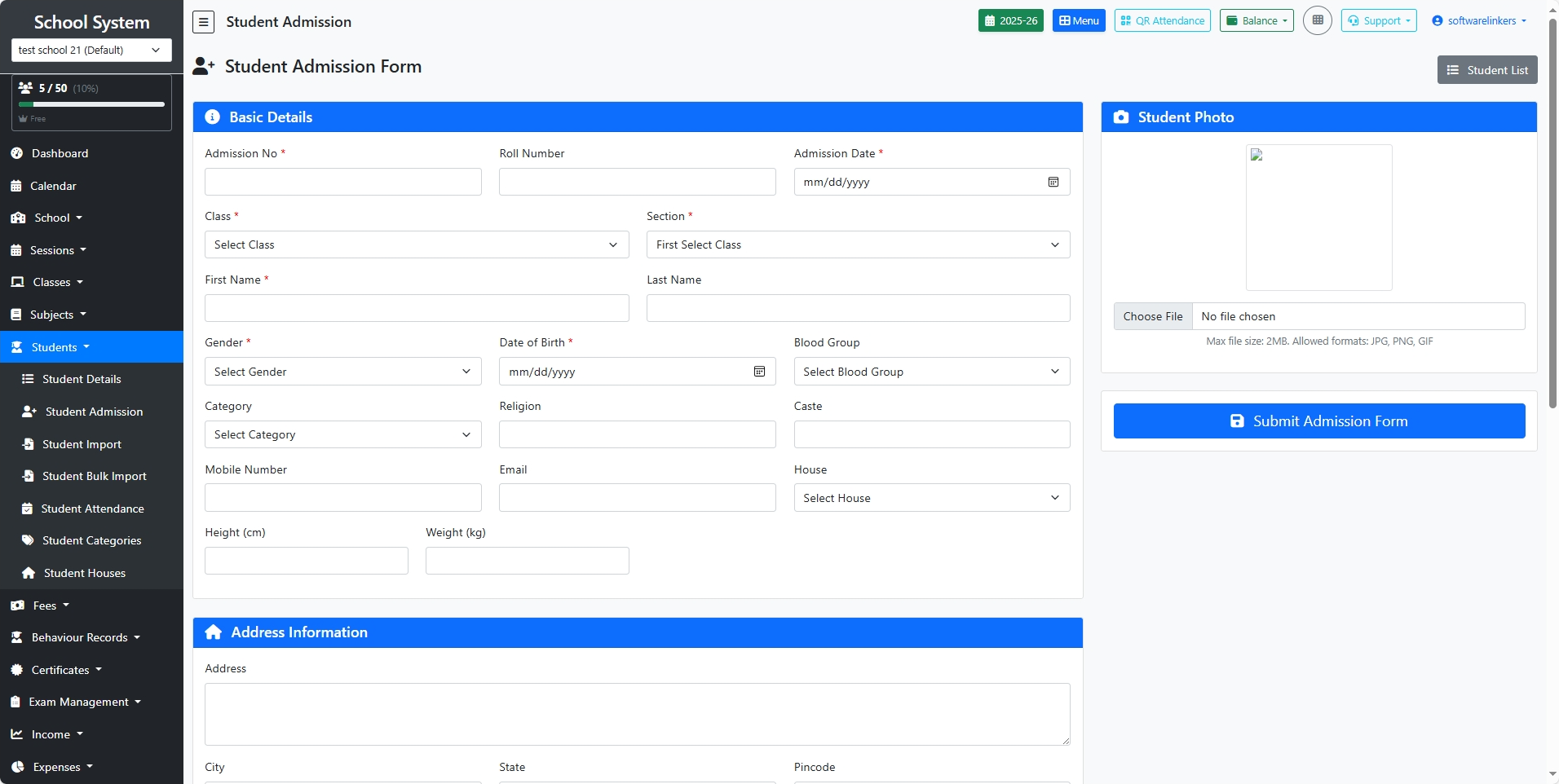
🔹 Section 1: Basic Details

  1. Admission No (Required)

    • A unique admission number for the student.

  2. Roll Number

    • The student’s roll number (optional at admission stage, can be assigned later).

  3. Admission Date (Required)

    • Select the date of admission.

  4. Class & Section (Required)

    • Choose the class and section where the student will be admitted.

  5. Student Name (Required)

    • Enter First Name and Last Name.

  6. Gender

    • Select the student’s gender.

  7. Date of Birth

    • Provide the student’s date of birth.

  8. Blood Group

    • Choose from available options (e.g., A+, B-, O+).

  9. Category / Caste / Religion

    • Enter student’s category (e.g., General, SC, ST, OBC), caste, and religion if applicable.

  10. House

    • Assign a school house (if applicable, e.g., Red, Blue).

  11. Parent Contact Email

    • Enter the student’s or parent’s email address.

  12. Height & Weight

    • Provide physical details if required.


🔹 Section 2: Address Information

  • Address – Full residential address of the student.

  • City, State, Pincode – Enter correct location details for records and communication.


🔹 Section 3: Parent/Guardian Information

  1. Father’s Name, Phone, Occupation

  2. Mother’s Name, Phone, Occupation

  3. Guardian’s Name, Relation, Phone, Email, Occupation, Address

👉 Guardian details are especially important if the student lives with someone other than parents.


🔹 Section 4: Student Photo

  • Upload the student’s recent passport-size photo.

  • Allowed formats: JPG, PNG, GIF

  • Maximum file size: 2 MB


🔹 Final Step: Submit Form

  • Once all details are filled, click Submit Admission Form (bottom-right).

  • The student will now be added to the system and appear in the Student List.

58 views Read More
Import Students
Import Students

step-by-step help guide you can give to users for importing students in your School System

📘 Steps to Import Students

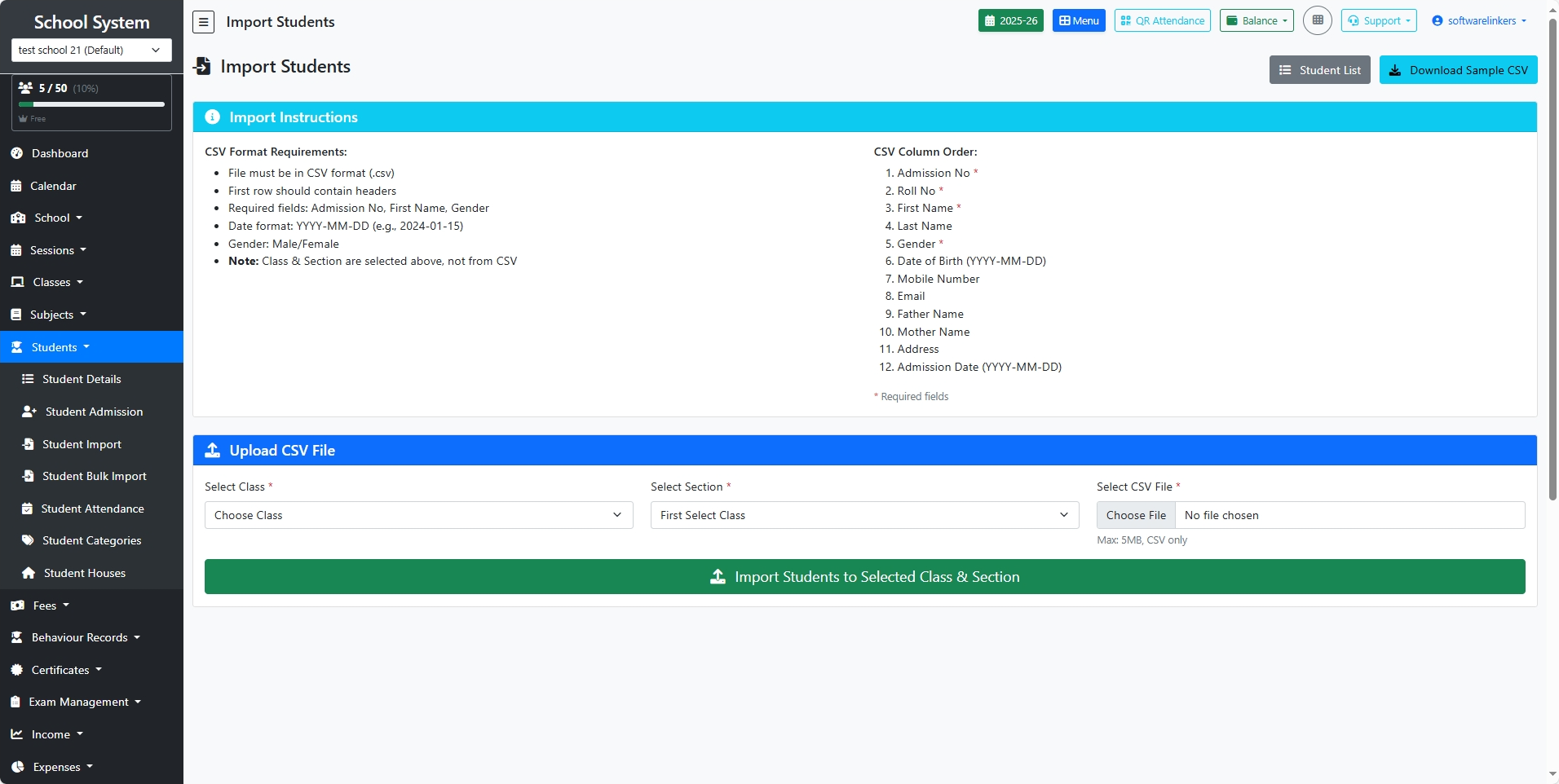
1. Download Sample CSV

  • Click the “Download Sample CSV” button.

  • Open the file in Excel/Google Sheets to see the correct column format.

2. Prepare Your Student Data

  • Enter student details in the same column order:

    1. Admission No (required)

    2. Roll No (required)

    3. First Name (required)

    4. Last Name

    5. Gender (Male/Female, required)

    6. Date of Birth (YYYY-MM-DD)

    7. Mobile Number

    8. Email

    9. Father Name

    10. Mother Name

    11. Address

    12. Admission Date (YYYY-MM-DD)

⚠️ Important Notes:

  • File must be .CSV format.

  • First row must contain headers.

  • Date must be in format YYYY-MM-DD (e.g., 2025-01-15).

  • Class & Section are not in CSV – they will be selected before upload.

3. Save File

  • Save your prepared data as CSV (Comma Delimited) (.csv) file.

  • File size must be less than 5MB.

4. Select Class & Section

  • Go to Students → Student Import.

  • Choose the Class.

  • Select the Section for which you want to import students.

5. Upload CSV File

  • Click Choose File and select your prepared CSV file.

6. Import Students

  • Click the green button “Import Students to Selected Class & Section”.

  • The system will upload the data and assign students to the chosen class and section.

7. Verify Import

  • After import, click Student List to check that all students have been added correctly.

150 views Read More
Bulk Import Students

step-by-step help guide you can give to users for bulk importing students in your School System

📘 Steps to Import Students (Admission)

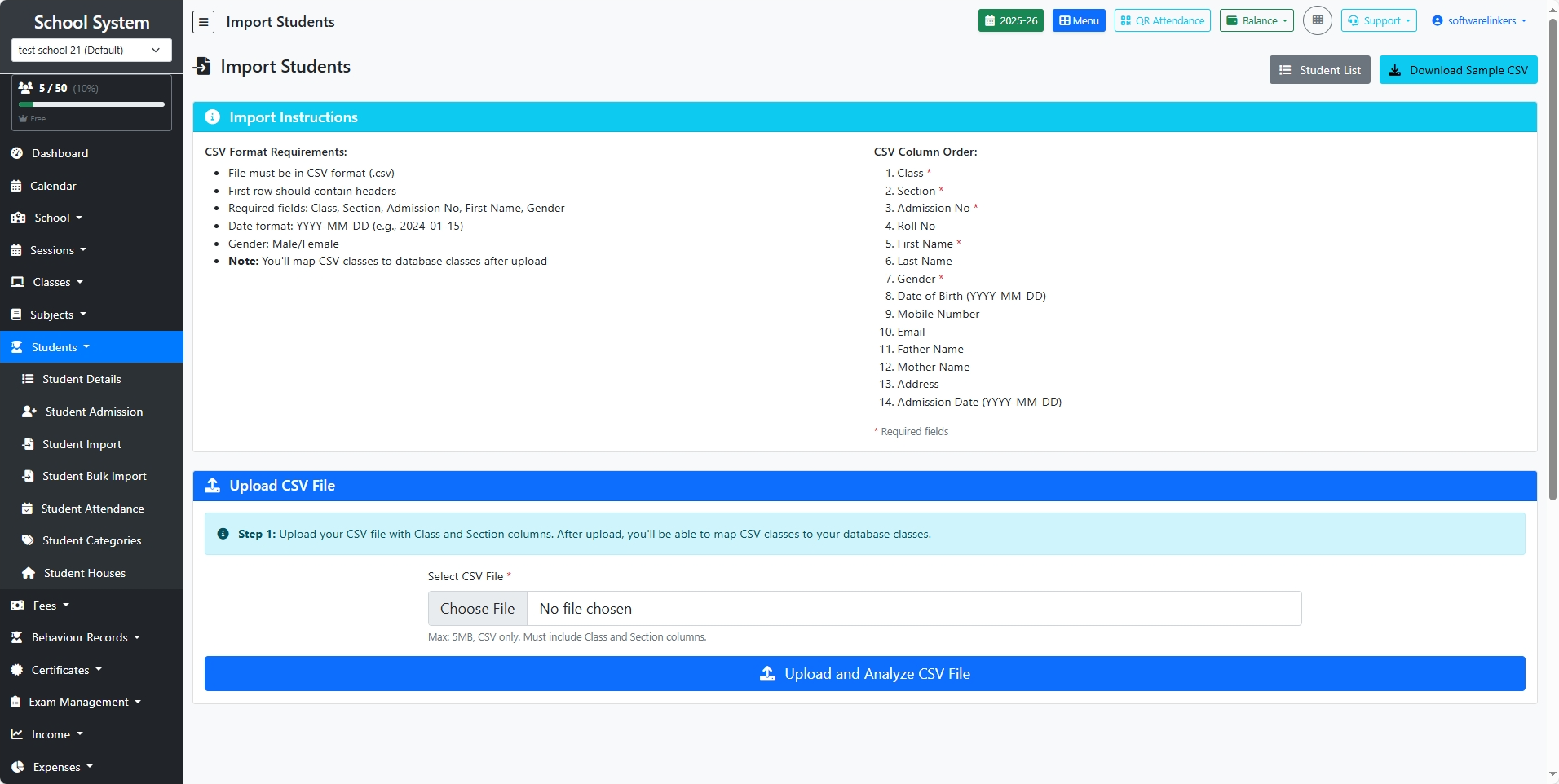
1. Download Sample CSV

  • Click on the “Download Sample CSV” button.

  • Open the file in Excel/Google Sheets to check the correct column order.

2. Prepare Your Student Data

  • Fill student details in the same column sequence as shown below:

    1. Class (required)

    2. Section (required)

    3. Admission No (required)

    4. Roll No

    5. First Name (required)

    6. Last Name

    7. Gender (Male/Female, required)

    8. Date of Birth (YYYY-MM-DD)

    9. Mobile Number

    10. Email

    11. Father Name

    12. Mother Name

    13. Address

    14. Admission Date (YYYY-MM-DD)

⚠️ Important Notes:

  • File must be CSV format (.csv).

  • First row should contain headers.

  • Dates must be in format YYYY-MM-DD (e.g., 2025-01-15).

  • Ensure Class & Section match the database classes (system will map them after upload).

3. Save File

  • Save the sheet as CSV (Comma Delimited) (.csv).

  • File size must be below 5MB.

4. Upload CSV File

  • Go to Students → Student Import.

  • Click Choose File and select your prepared CSV file.

5. Analyze File

  • Click the blue button “Upload and Analyze CSV File”.

  • The system will validate data and show any errors.

6. Confirm Import

  • If no errors are found, confirm the import process.

  • The students will be added automatically under the respective Class & Section.

7. Verify Import

  • After import, click on Student List to check that all students are properly added.

131 views Read More
Was this article helpful?
Share this article
Related Articles
Getting Started with School Management

Learn how to set up and configure your school management system...

98 views
Staff and Teacher Management

Guide for managing school staff, teachers, and their responsibilities...

85 views