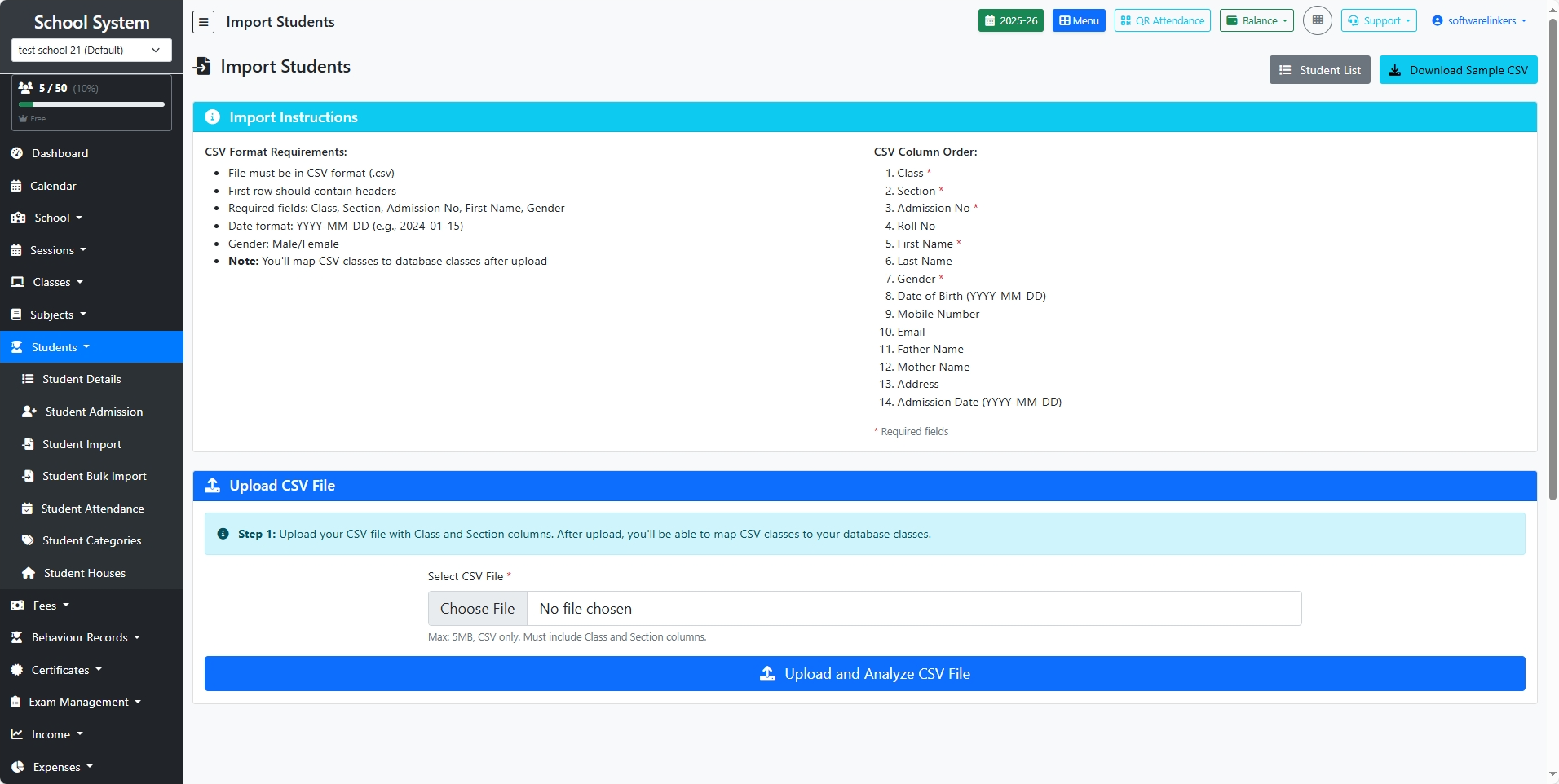
📘 Steps to Import Students (Admission)
1. Download Sample CSV
-
Click on the “Download Sample CSV” button.
-
Open the file in Excel/Google Sheets to check the correct column order.
2. Prepare Your Student Data
-
Fill student details in the same column sequence as shown below:
-
Class (required)
-
Section (required)
-
Admission No (required)
-
Roll No
-
First Name (required)
-
Last Name
-
Gender (Male/Female, required)
-
Date of Birth (YYYY-MM-DD)
-
Mobile Number
-
Email
-
Father Name
-
Mother Name
-
Address
-
Admission Date (YYYY-MM-DD)
-
⚠️ Important Notes:
-
File must be CSV format (.csv).
-
First row should contain headers.
-
Dates must be in format YYYY-MM-DD (e.g., 2025-01-15).
-
Ensure Class & Section match the database classes (system will map them after upload).
3. Save File
-
Save the sheet as CSV (Comma Delimited) (.csv).
-
File size must be below 5MB.
4. Upload CSV File
-
Go to Students → Student Import.
-
Click Choose File and select your prepared CSV file.
5. Analyze File
-
Click the blue button “Upload and Analyze CSV File”.
-
The system will validate data and show any errors.
6. Confirm Import
-
If no errors are found, confirm the import process.
-
The students will be added automatically under the respective Class & Section.
7. Verify Import
-
After import, click on Student List to check that all students are properly added.